Showing posts with label gmail. Show all posts

Friday, July 3, 2015

How to Import an Outlook PST File Data into Gmail Account

Sync Outlook with Gmail IMAP account to upload Outlook contacts, emails and calendars to Gmail Id. A manual procedure for how to import an Outlook PST file into Gmail account  is elaborated with related screenshots.  You just need to do the following task which helps migrating PST files to Gmail account.

The whole task to import Outlook emails to Gmail is divided into 2 sections so far you can easily do the job without any confusion.

1) First Half Section of the Task:

Before moving to import process, enable IMAP for Gmail account and configure that Gmail account with Outlook 2013, 2010 or any older edition by using IMAP server. Check how to configure Gmail in Outlook using IMAP.

Configuring Gmail Account in Outlook 2013, 2010 Using IMAP

A stepwise guide for configuring Gmail account in Outlook 2013, 2010 and 2007 etc using IMAP. Know how to connect Gmail to Outlook IMAP by setting up a Gmail account in Outlook.

Internet Message Access Protocol (IMAP) is  used for accessing email from a local client on a remote web server. IMAP is the only free email server that allows synchronizing mails across multiple machines. You just need to follow easy guidelines to know how to configure Gmail in Outlook with IMAP.
Before configuring gmail account in Outlook using IMAP, you have to enable IMAP in Gmail account. For that:

Login to your Gmail account >>Settings>>Forwarding and POP/MAP>>Enable IMAP.

Monday, February 9, 2015

Google Takeout to Download Gmail Messages to My Computer


Know how Google Takeout helps to download Gmail messages to my computer. Easily backup archive (emails, contacts, notes, calendars and chat) of Gmail account.

Before moving on the backup process, it is required to know what is Google Takeout and how secure it is for downloading messages from Gmail accounts. For your information, Google Takeout is recently launched features added to Gmail application that helps us to backup Gmail data into a PC.

I am very happy to elaborate the procedure for query how to download gmail messages to my computer because the method is 100% secure and very easy to perform.

Follow Instructions to Download Gmail Messages, Contacts, Calendars etc through Google Takeout

1) In the beginning, loin to your Gmail account

2) Click on your “profile pic” from right upper section >> Now click on the “Account”

 
3) Now you will be in another tab with a new window >> Click on “Download data” from the account tool section

 
4) Select required products such as: mail, calendars and contacts, etc. (or click on Select All button to choose all products) >> Now press the Next button.
 
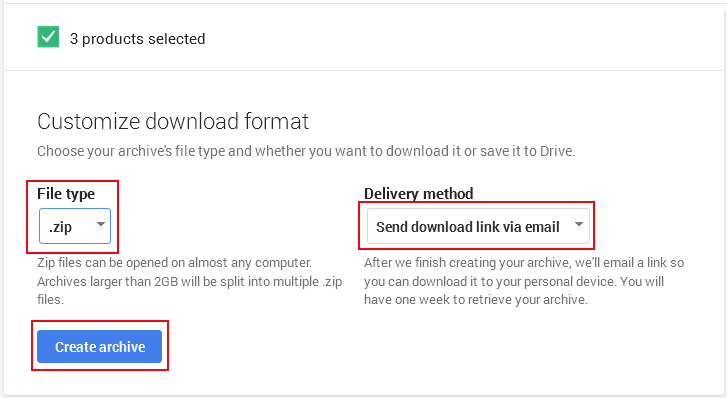
5) Now Customize download format:
  • Select “.zip” from the File Type
  • Choose “send download link via email” from the Delivery Method
6) The backup process is done now it will take some time before it is ready to download 
 
7) After a short time, an email message will be delivered automatically with the download link >> Click on the “Download Archive” button.
 
8) A last pop-up will be in front of you with complete details >> Click on “Download” button, that’s it.
 
9) Now you can see that your Gmail messages, contacts and calendars will be available on your PC in a .zip folder. Go to a download folder where .zip file is stored.
 
10) Extract all folders of .zip folder and you will find that separate folders are generated for mail, contacts and calendars. 


Note:

1) Entire mail will be downloaded in a file with .mbox extension that can be imported or opened through many desktop email clients such as: Mozilla Thunderbird, Apple Mail, Entourage, Eudora Mail, SeaMonkey and PocoMail etc. if you want to open these files in MS Outlook then you can convert MBOX files to PST format first then it will be easy to access PST files with any version of MS Outlook.

2) All contacts will be downloaded in separate .vcf(vCard) files that are supported by many email clients such as: MS Outlook, Lotus Notes, Thunderbird as well as mobile devices such as: iPhone, iPad, Blackberry, Nokia phone, Samsung, nexus, LG, Motorola etc.

3) Calendars will be stored in .ics file format which is also supported by MS Outlook and Lotus Notes etc.

Saturday, October 11, 2014

Top 6 Ways to Import your Existing Contacts to Hotmail Account

If you are accessing your Hotmail account (or MSN account or live account) using web browser so you can import your existing contacts stored on your PC or contacts of your other social accounts to your Hotmail.

Top 6 easy methods are listed here that will let you to import your existing contacts into new created Hotmail account using Facebook, Google contacts, LinkedIn contacts, Sina followers and Twitter contacts or using a file form of CSV exported address.
  1. Sign in to your Hotmail account using web browser.
  2. Click on the small down-arrow next to the "Outlook" icon and click on the People

  3. Click on Manage >> Add People
  4. Now a window will pops-up with different 6 options
  5. If you want to copy contacts from Facebook then click on first option (Facebook friends) >> connect
  6. Click on second option (Google Contacts) to import contacts from your
    Gmail id >> Connect


  7. In same way you can directly copy LinkedIn contacts to your Hotmail account, select LinkedIn contacts and press connect
  8. When you select Sina followers, you will find a dialog box to connect and import your SinaWeibo contacts to Hotmail.
  9. When you choose Twitter contacts, you must to connect your Twitter accounts so that Hotmail can easily import your twitter contacts.
  10. Final and much preferred method is importing contacts to Hotmail using CSV file for that you need to browse CSV file from your computer
  11. When a .csv file is correctly selected,click on Import contacts button to start the uploading of contacts from the file.

Friday, September 26, 2014

How to import Excel File Contacts into Gmail Account


Excel is a widely preferred spreadsheet application developed by Microsoft and comes with MS Office suite. It provide us many useful formulas and functions that help to manage large amount of data in a excel sheet. Most of professionals used this program for the personal as well as business purpose to save important contacts, account details, employee data and other information etc.

In other hand we are talking about Gmail that is the most popular online mail service provider developed by Google Inc. Gmail allow users sending receiving emails, storing contacts, calendars and managing tasks etc.

Why Need to Transfer Contacts from Excel to Gmail?

When a MS Excel user desires moving their contacts from xls file to Gmail account that time a most common query generated that is “how to import Excel file contacts to Gmail account”. So now here we will discuss stepwise solution to short out this query manually in less time and less effort. By unloading contacts to Gmail from Excel user can achieve several benefits:
  1. By sending xls contacts to Gmail account user can access them widely every time from everywhere.
  2. Imported contacts helps users in sending bulk emails to single or multiple persons which saves time
  3. Gmail contacts can be sync simply with email clients, mobile phones and other electronic devices
  4. Gmail also allow users for directly exporting contacts into most common vCard and CSV file format
Easy Steps to import Excel file Contacts into Gmail!

Before doing any task it is important to know everything about method so after reading above described information everything should be clear. Now follow only few simple and manual steps to short out how to Import Excel Contacts to Gmail. We have divided whole process in two sections as shown below:
  1. Export Excel Contacts as CSV File
  2.  Import CSV File into Gmail Account
Steps to Export Excel Contacts to CSV File


Step1: In the very first step, create a duplicate file for backup purpose. 

Open your Excel spreadsheet where all contacts are stored


Step2: If you are using MS Office 2007 then Click on Office button, Click on Save as button 


Step3: Select CSV from Save as type list >> Provide a desired name and save the file
 

Step4: A confirmation message pops-up >> click on Ok button

 
Step5: A confirmation message spark again >> Now press Yes button 

 
Step6:Through this method you can move all Excel contacts to a CSV file 


Note: For MS Office 2010 users there is direct method to save Excel file as CSV file.
 
 Steps to Import CSV File into Gmail Account
Step1: Open Gmail and provide credentials to Login into account

Step2: Now click on contacts from the top right corner

Step3: Click on more button and select Import 
 
Step4: A window will pops-up on your screen >> Now click the choose file button and browse CSV file from your computer >> finally click on Import button to finish the process.

Step5: Now you can see all contacts are imported in your Gmail account.

 
Final Words: In the last section I want to say one more thing that it is better to use this easy manual method for moving excel contacts to Gmail instead using a paid solution. All possible steps are described here to get over this task. Apart from importing contacts you can get details about MS Excel and Gmail contacts in deep.